From finished job to paid invoice, in one tap
You just finished the job. Open Workeey, tap the finished job, and the invoice is half-written already — the client, the address, the line items, even the photos you took carry over. Add a tax rate, hit send, and the email is on its way before you have packed up the van.
One tap from a finished job
Most invoicing apps make you start from a blank screen and type everything twice — once when you booked the job, again when you billed. Workeey does not. Every job you run through scheduling already holds the client, the address, the notes, and the work you logged. When it is done, that job becomes the invoice — you confirm the line items and set the tax rate.
You can still start blank when you need to — a quick bill for a job that never got scheduled, or a deposit before you begin. Either way the invoice is numbered automatically, in order, so your books stay clean and nothing gets a duplicate number. No spreadsheet, no carbon book in the glovebox, no guessing the last invoice number.
- Client, address and notes pulled from the job
- Line items you can edit, add to, or delete
- One tax rate applied per invoice
- Job photos attached as proof of work
Photos that prove the work
When a client questions a charge, a photo ends the conversation. The pictures you took on site — the corroded valve, the burnt outlet, the finished tile — ride along on the invoice as proof of what you did and why it cost what it did. They are the same photos backed up in the client's file, so you never dig through your camera roll at billing time.
This matters most on the jobs that turn into arguments: the emergency call-out at midnight, the extra hour nobody saw, the part you had to replace once the wall was open. A dated photo on the invoice is worth more than any line of text you could write. Capture happens in the mobile app; the web version shows media that is already uploaded and backed up.
Statuses that tell you who owes you
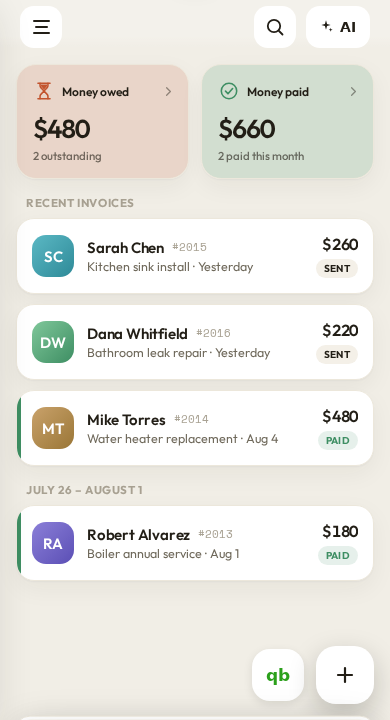
Every invoice sits in one of four states — draft, sent, paid, or overdue — so a glance tells you where the money is. The dashboard rolls it all up: total owed, total paid, and what has gone overdue. No more scrolling back through a texting thread trying to remember whether the Hendersons ever actually paid you for the water heater last spring.
When an invoice goes unpaid past its due date, Workeey can chase it for you with automatic email reminders on a schedule you set once. You pick the tone up front — friendly or firm — and the app keeps sending until the client pays or you switch it off. Text reminders are coming; email is the mechanism that is live and working today.
Get paid by card or bank
Connect your own Stripe account and every invoice carries a pay link. The client taps it and pays by card or straight from a US bank account with ACH — no app for them to download, no account for them to make. The money lands in your Stripe balance and the invoice flips itself over to paid without you touching it.
Fees run roughly three percent plus thirty cents on cards and about one percent on bank payments, so on a big invoice, nudging a client toward bank pay keeps more of the total in your pocket. Every payment is logged against the client, so you always have a full history of who paid, when they paid, and how they paid it.
Works in the basement, sends when you resurface
So much of the work happens in basements, crawl spaces, and mechanical rooms with no signal at all. Workeey writes your invoice to a durable queue right on the phone, so you can build it and hit send next to the furnace. The moment you are back on a single bar of signal, it goes out on its own, no babysitting.
You never lose an invoice to a dropped connection, and you never have to remember to resend it from the driveway. This is the same offline queue the rest of the app runs on, so scheduling a job, adding a client, or logging a payment all behave the same way — do it now, and it syncs the instant it can.
Can I edit an invoice after I send it?
Yes. Change the line items, the tax rate, or the photos and resend it. The invoice keeps its original number so your records stay in order.
How does my client pay?
They tap the pay link on the invoice and pay by card or US bank transfer. No account or app is needed on their end — it works right in a browser.
Do I need to be online to make an invoice?
No. Build it offline and it sends automatically the moment your signal returns, thanks to the app's durable queue.
Is there a limit on how many invoices I can send?
No — invoicing itself is unlimited on every plan, including the free one. Plans differ on payment reminders and QuickBooks sync, not invoices.