Workeey is built for your phone. Scan the code with your phone to get the Android app, or open workeey.com on your phone. The iPhone app and a desktop version are coming soon.
Get the Workeey app. Same account, same jobs.


Your whole day, job by job
See today's jobs in order, each with its own time slot, notes, and photos. When the work's done, mark the job finished and turn it into an invoice in one tap. Everything you entered — client, address, photos — carries over, so you can bill before you've left the driveway.
The day, laid out by time slot
Open Workeey and you see today's jobs in order, each with a from and to time slot — 9 to 11 at the Johnsons', 1 to 2:30 across town. The day view auto-expands so the hours you're actually working fill the screen instead of a wall of empty night. You can see at a glance where you're meant to be and how much room is left before the next one.
Adding a job is the same place you enter everything about it. Type the client, the address — with Google address autocomplete so you're not thumbing in a long street name — the time, and any notes about the work. It all lives on the schedule, and on Pro the same job shows in your Google Calendar, where moving it to a new time writes back to Workeey.
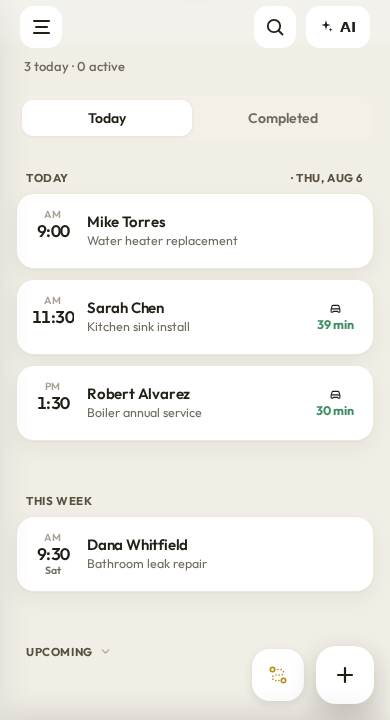
Everything about the job in one place
A job isn't just a time on a calendar. It holds the client's details, the address, your notes, and the photos from the work itself, taken right in the app. Grab the before and after, the model number on the old water heater, the mess in the basement you want on record — it's backed up and tied to that job, not lost in your camera roll where you'll never find it again.
Notes are where the real detail goes. The gate code. The dog. The part you need to bring next time. What the customer actually asked for versus what they said on the phone. Because the notes sit on the job, they're there when you show up and there again when you bill, so nothing gets remembered wrong three weeks later when the money's on the line.
- From/to time slots, with the day view auto-expanding to your working hours
- Client, address (Google autocomplete) and notes entered as you add the job
- Photos taken on the job, backed up and organized
- Google Calendar sync on Pro — move a time in Google and the job follows
Mark it finished, then bill it
When the work's done, mark the job finished. That's the moment Workeey is built around. From a finished job you create an invoice in one tap — the client, the address, and the job's photos carry straight over as proof of what you did. You add your line items and the tax rate, and it's ready to send before you've packed up the van.
This is the part that saves your evenings. No sitting down at night trying to remember which house wanted what. The job already holds the details, so the invoice writes itself from them. Photos from the job ride along on the bill, which means the customer sees the work they're paying for and you have a record if anyone ever questions it.
Get there, then get to the next one
A job has an address, so Workeey can route you to it. Send yourself to the next client with one tap, or optimize the whole day's route so you're not crossing town twice. It opens in Google Maps, Waze, or Apple Maps — whichever you already use — so the navigation is the app you trust, not something new to learn on a busy morning.
Between jobs, the dashboard keeps the day honest: what's still ahead, what money's owed, what's overdue. And the AI button is on every screen — ask it to move tomorrow's first job, make the invoice, text the client a reminder, or price the job you're standing in, by typing or just talking to it. It does almost anything in the app for you.
Is a job the same as an appointment?
Yes. A job holds its time slot, the client, the address, your notes, and the photos — it's the appointment and the work record in one, and it's what you turn into an invoice when the work is done.
Do the job photos end up on the invoice?
Yes. When you make an invoice from a finished job, the photos carry over as proof of work, so the client sees exactly what they're paying for.
Does the job sync with my Google Calendar?
Yes, on Pro. A job you add in Workeey shows in Google Calendar near-instantly, in its own Workeey calendar, and if you move it to a new time in Google, the new time writes back to Workeey.
Can I add notes a customer won't see?
Yes. Notes live on the job for you — gate codes, the dog, the part to bring. They're your working detail, kept separate from what goes on the invoice.