Workeey is built for your phone. Open workeey.com on your phone — the Android app is on its way. A desktop version is coming soon.
How Workeey works
It's 7pm. The last job is done, and there are still three invoices to write, two customers to chase for money, and tomorrow's jobs scattered across your texts. Workeey puts all of that in one app on your phone. Below is one day with it, then every part in detail, and you can try it free as a guest without signing up.
A day with Workeey
Here is an ordinary day, five jobs and one of them a water heater swap, and what the app does at each step. The pictures are the real app, filled with made-up customers.
Put the day in order
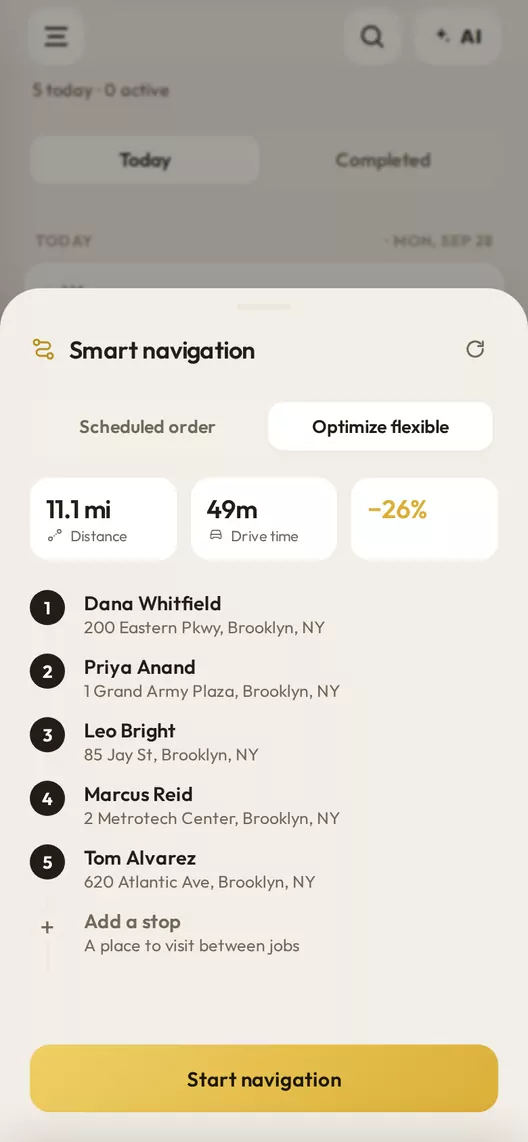
Open Jobs and today's work is there in time order. Tap Smart route, pick Optimize flexible, and Workeey reorders the stops to cut the driving, then tells you how much shorter the day got, or that it was already the fastest order. Jobs you've locked keep their time.
Tap Start navigation and Google Maps opens with every stop loaded. Waze and Apple Maps work too, one stop at a time.
The estimate prices itself
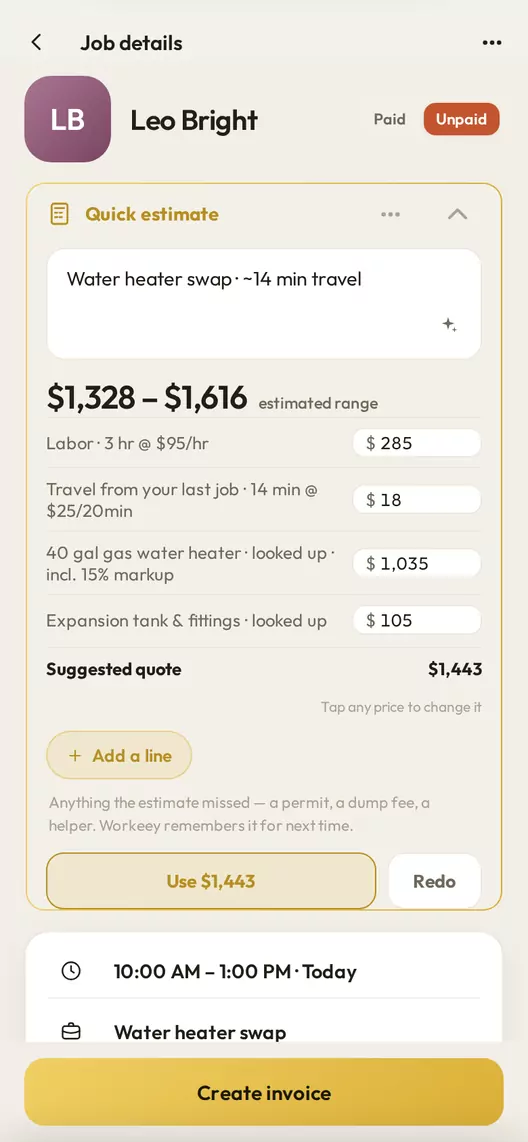
Open the job, tap Quick estimate and type what the work is. Workeey prices every line from your own rates, what you charged on past jobs for that customer or that kind of work, the real drive from your last job, and parts prices from US stores like Home Depot, Lowe's and SupplyHouse, looked up within the last month. A part price is used only if that exact number is on the store's page.
You get a range and a suggested quote. Tap any price to change it, then use it as the job's price. From the job's menu, Share quote turns it into a PDF with the deposit on it, to send from your phone or download.
Swipe it complete, tap Invoice
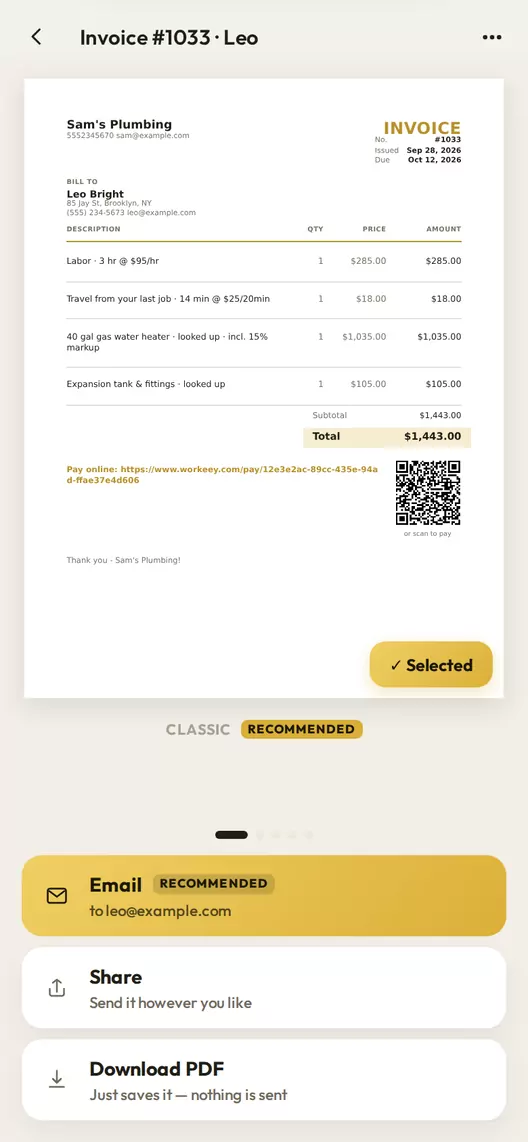
Swipe the finished job to the right. The bar that says Job completed has an Invoice button: tap it and the invoice opens with the estimate's lines already in it, and the job's photos come along. Tap Create & send and choose how it goes. Email sends it with a pay link, Share hands it to any app on your phone, or you download the PDF.
Paid in cash or by check? Swipe the invoice to the right on the list and it's marked paid. The clip shows the whole thing.
They pay from a link
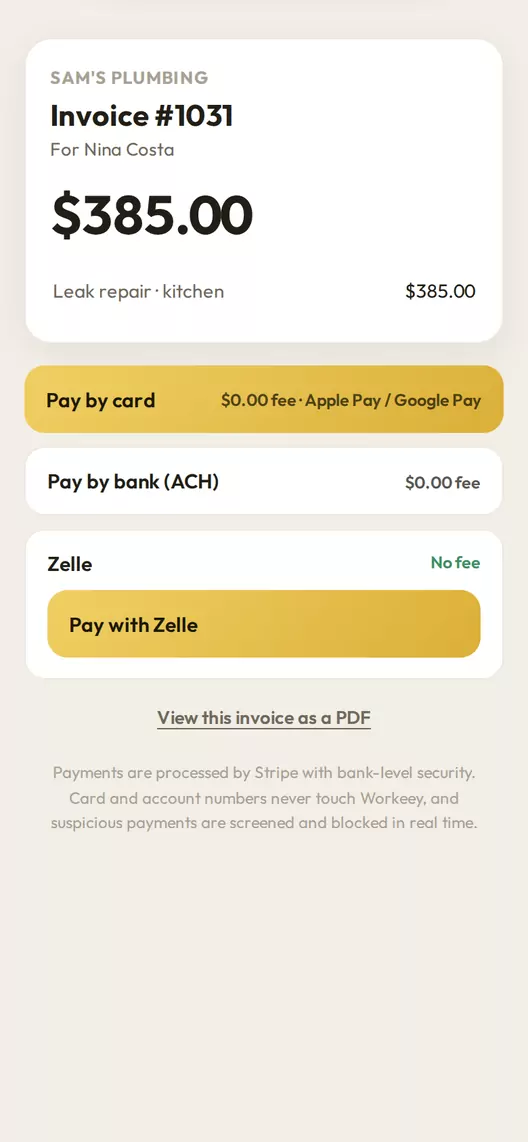
The customer taps the link. There is no app to install and nothing to log in to: they see your business name, every line and the total, and pay by card, Apple Pay, Google Pay or bank transfer. If Link or Cash App are turned on in your Stripe account they show up too, and your Zelle and PayPal details can sit on the same page.
The money goes to your own Stripe account. The invoice marks itself paid and a receipt emails itself to the customer, and a bank transfer shows as Pending until it clears. There is a small processing fee, and you choose whether you cover it, so your customer sees no fee (as in the picture), or add it to their bill.
Reminders text them for you
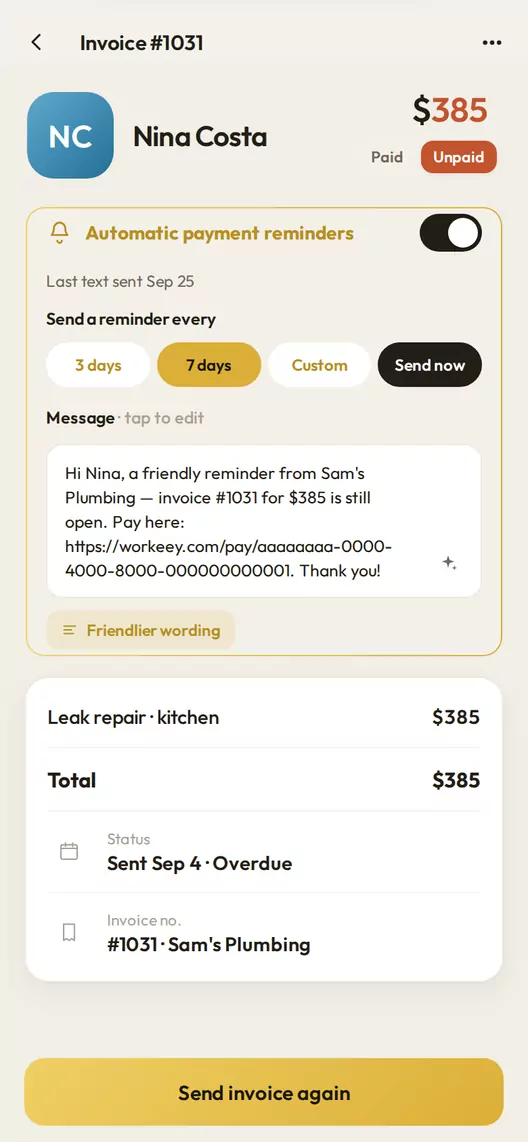
Once the due date passes, the invoice turns Overdue by itself. Switch on automatic payment reminders and Workeey texts the customer for you: pick every 3 days, every 7 or your own number, and the first text goes that many days after the due date, then again on the same rhythm. Texts only go out between 10am and 7pm Eastern, never more than eight for one invoice, and every one carries the pay link.
You write the message once and every invoice uses it; change it on an invoice or in Settings and it changes everywhere. If the customer replies STOP, the texts stop. You can also send one right now, or pick a time for later.
See where the money is
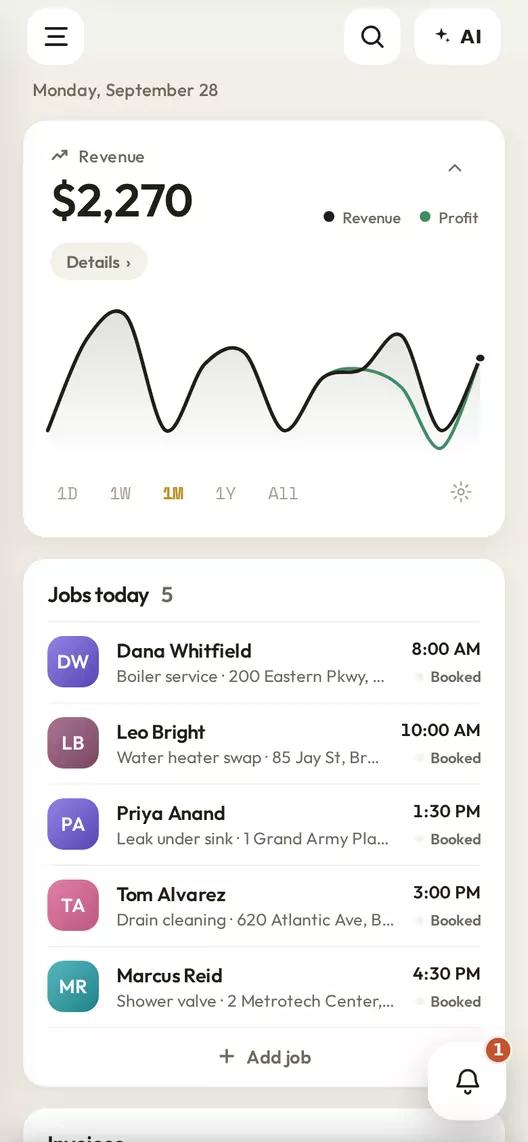
The dashboard opens on your revenue and profit for the day, week, month, year or all time. Tap it for the money page: what you collected, what's still owed, your expenses and your average invoice. Log an expense, snap the receipt, and the photo files itself in an Expenses album.
On Pro, QuickBooks is already up to date: customers, invoices, payments and expenses go across as they happen.
Or just ask the AI
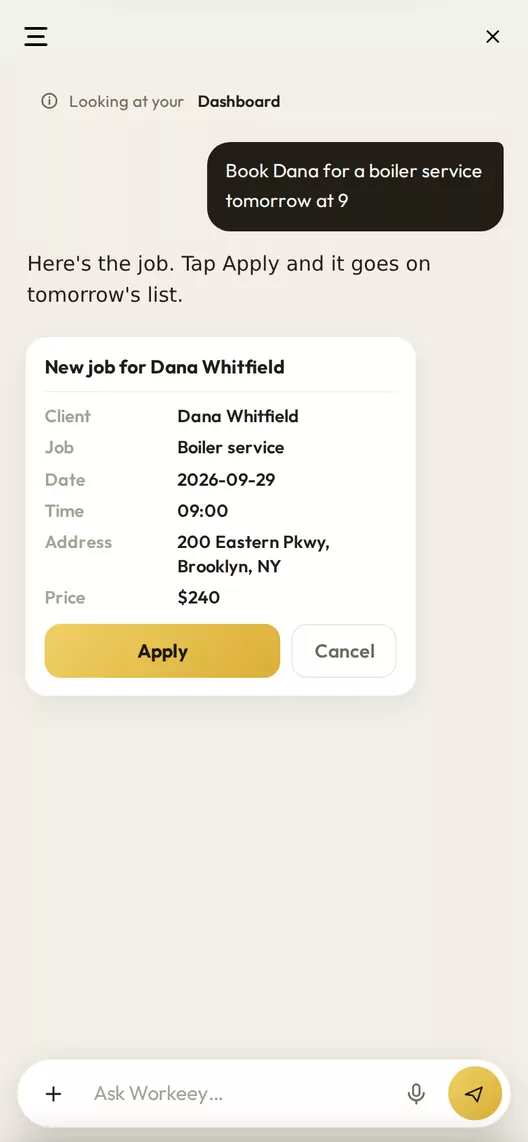
Every screen has an AI button. Type or talk to it, say "book Dana for a boiler service tomorrow at 9", and it does the work: jobs, clients, invoices, estimates, notes, calendar entries, expenses, even a payment reminder text. It finds things too, like who still owes you from March.
Anything it adds or changes in your business shows up as a card first and waits for you to tap Apply; a delete waits for you to tap Delete and can be undone, and a reminder text waits for you to tap Send. It won't take payments, connect your accounts, send an invoice or a quote to a customer, or delete a client.
Every part, in detail
The day above skipped plenty. Here is each part of the app on its own.
Dashboard
Revenue and profit sit on top, always, as a line, candle or bar chart, and the eye button hides the numbers when someone is looking over your shoulder. Below them are the cards you choose, from jobs, invoices, notes, schedule and recent activity, in the order you drag them. Tap a row and the real job, invoice or note opens right there, and the Add buttons open the real add screens. More on the dashboard.
Jobs
Today's jobs, with overdue, this week and upcoming around them, and a Completed tab that shows what's been paid. Adding a job is one screen: start typing the customer's name and their phone, address and email fill in (a new name becomes a new client), pick the service from suggestions for your trade, and set the date and time. Workeey learns how long each kind of job takes you and fills in the end time, and it warns you when two jobs clash.
Hold and drag a job to move it and it re-times itself. Swipe right to complete, left to delete, with undo. Each job has call, text, email and directions, notes, photos, a paid switch, and repeat: weekly, monthly, yearly or every few days. Mark a job paid and its invoice is marked paid too, and once a job has an invoice its button says Open invoice. More on jobs.
Smart route
It takes today's jobs that aren't done yet, up to 11 stops. Scheduled order keeps your times; Optimize flexible finds a shorter order, never a longer one, and leaves locked jobs where they are. Add a stop that isn't a job, like the supply house, drag the stops into your own order, or take one off. Google Maps gets the whole day in one link, while Waze and Apple Maps go stop by stop. You pick your maps app once, in Settings.
Estimates and quotes
Set your rates once in Settings: hourly, travel per 20 minutes, call-out, first hour, evenings and weekends, parts markup and deposit. Quick estimate on a job uses them with your past jobs, the drive and parts prices checked on US store sites such as Home Depot, Lowe's, SupplyHouse, Ferguson and Grainger. Lines you add yourself, like a permit or a dump fee, are remembered for next time, and you can ask the AI to change an estimate for you.
The quote is a PDF, good for 30 days, with the lines, tax, total, the range and the deposit to start. Share it from your phone or download it. There is no online sign-off: the customer says yes to you, and when the work is done one tap turns the estimate into the invoice. Free includes 23 estimates a month, and paid plans are unlimited. More on estimates.
Invoices
Make an invoice from a job, where the lines and photos carry over, or from scratch, with a tax rate, a due date and up to 10 photos. The numbers count up by themselves. Swipe between five paper styles and keep your favourite. Email it with a pay link, share it through any app on your phone, or download the PDF. The email goes out from Workeey, carries your business name on a paid plan, and replies come to you.
The list shows money owed and money paid at the top, with filters for sent, overdue and due soon. Swipe right to mark an invoice paid, or left to delete it; a paid invoice can't be deleted. Invoicing is free, with no limit on how many. More on invoicing.
Getting paid
Connect your own Stripe account from Invoice setup; it walks you through Stripe's own sign-up. From then on every invoice carries a pay link, and you choose which ways to pay each invoice offers. Zelle, with a QR code, and PayPal go on the pay page and on the invoice itself. One payment can be up to $25,000.
A full refund or a dispute in Stripe reopens the invoice and tells you, while a part refund keeps it paid, with a note. For a dispute, Settings builds an evidence PDF for you. More on payments.
Payment reminders
Reminders are texts, and they go to US numbers. Free includes 10 reminder texts a month, Pro 30 and Premium unlimited. The first text tells the customer they can reply STOP. STOP, START and HELP replies are handled for you, and if a customer opts out the invoice says so, with a button to email them instead. One tap asks the AI for friendlier, shorter or firmer wording. More on reminders.
Calendar
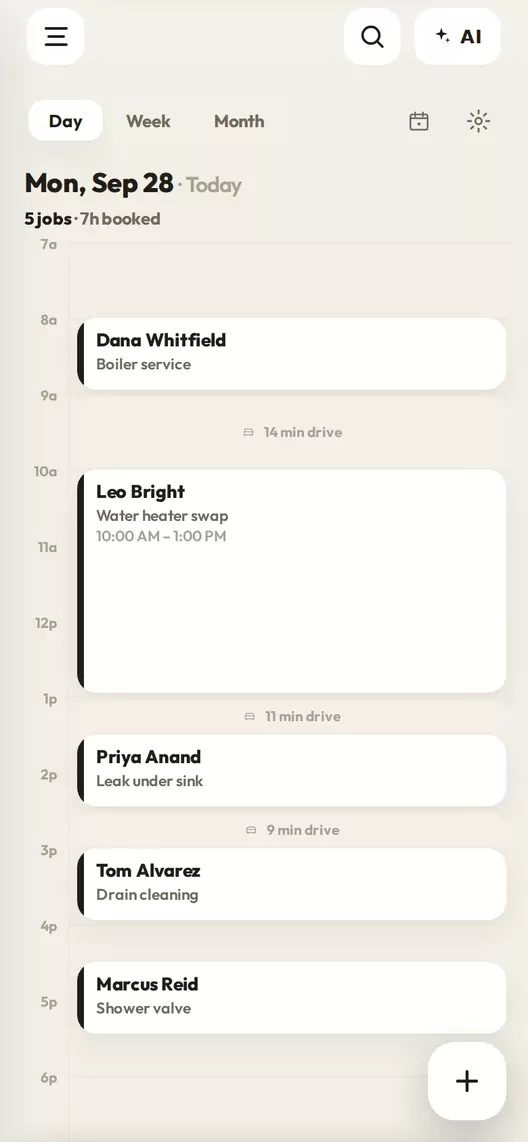
Day, week and month views, and tap an empty time to add something there. A job opens the real Add job. Anything else, a dentist appointment or a supply run, gets a title, a time and a note, in types and colours you choose. Between jobs it shows the drive time and warns you when a gap is tight, and US holidays are marked. Hold and drag to move things, pinch to zoom, and swipe to delete or to complete a job.
On Pro, Google Calendar syncs: your jobs go into their own Workeey calendar in Google, your Google events show in Workeey, and moving a job's time in Google moves it here too. More on scheduling.
Clients
An A to Z list you can search by name, phone, email or address. Each client holds up to three phones, emails and addresses, with address suggestions as you type. On Android, in Chrome, you can pull a client in from your contacts, and new clients can be saved to your phone's contacts too.
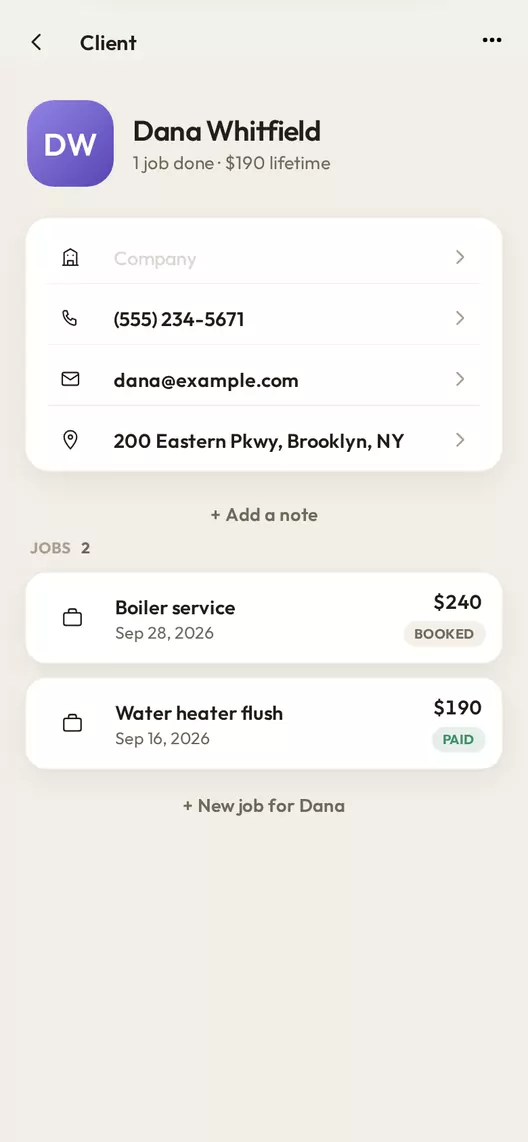
A client's page has call, message and directions, their lifetime total, every job with its status, your notes on them, and a button to book the next job. More on clients.
Notes
Your own notes, plus the notes on every job, grouped by client. Folders, pins, checklists, several photos at once, voice typing and undo. Drag a note into a folder or the trash, and a deleted note can be brought back for 10 days. More on notes.
Photos
Take a photo or pick several from your phone, from the gallery, a job, a note, an invoice or a receipt. They're shrunk on your phone so they upload fast, and with no signal they wait and upload by themselves when it's back. You get albums, a 30-day trash, a private note on each photo, share and download, and hold and drag to pick several at once.
Free includes 1 GB of photo storage, Pro 5 GB and Premium 50 GB. Video will come with the Android app, which is on its way. More on photos.
The AI
The AI can see all of your data from any screen, and you can type or talk to it. Changes wait for you: Apply for a new or edited job, client, invoice, estimate, note, calendar entry, expense or setting, Delete with undo, and Send for a reminder text. It can also write a PDF or a document for you, look something up on the web, remember what you tell it, and follow rules you set. Send it up to two photos, or a text or CSV file.
On Pro and Premium it can make pictures too. It can't take payments, connect accounts, change your plan, send an invoice or quote, or delete a client. More on the AI assistant.
Connections
Stripe, for getting paid by card and bank. Your bank, read-only, through Plaid: when a deposit clearly matches an invoice, that invoice marks itself paid and the receipt goes out, and when it isn't sure, it asks you. Money going out becomes expense suggestions you keep with a tap. Connecting Stripe or your bank needs an account with a confirmed email.
On Pro, QuickBooks Online: customers, invoices, payments and expenses go across by themselves, it can sync back the other way if you want, and it can bring in your history once. Also on Pro, Google Calendar, as above.
Plans
Free is $0 and keeps invoicing, pay links, jobs, the calendar, clients, notes, photos and the AI, with 23 estimates and 10 reminder texts a month and 1 GB of photo storage. Invoices and quotes made on Free carry a small Generated by Workeey line.
Pro is $5 a month: unlimited estimates, 30 reminder texts a month, 5 GB of photo storage, more AI, two AI pictures a day, invoice emails under your business name, and QuickBooks and Google Calendar. Premium is $19 a month: unlimited reminder texts, 50 GB of photo storage, the most AI and ten pictures a day. Paid plans are monthly. Move up and you pay only the difference for the rest of the month; move down and the lower plan starts at your renewal date. Cancel any time and the plan runs to the end of the month you paid for. The full list is on pricing.
Trying it as a guest
Tap Continue as guest and you're in, with no email, no password and no card. A guest can use every screen, but sending and connecting wait: emailing an invoice or texting a reminder needs a free account, Stripe and your bank also need a confirmed email, and Google Calendar and QuickBooks come with Pro. A guest has 14 days to make a free account and keep what they've built; after that the app waits until they do.
What it doesn't do yet
Workeey is built for the one-person shop first, and some things aren't there yet.
- No partial payments or payment plans: an invoice is paid in full.
- No recurring billing. Jobs repeat; invoices don't.
- No online sign-off for quotes: the customer says yes to you.
- No discount line on invoices.
- No team accounts for several techs yet. A Team plan is coming.
- No card reader or tap to pay.
- English only.
- No app in the app stores yet: it runs in your phone's browser, and an Android app is on its way.
- It needs signal to open. Once it's open, what you save and the photos you take wait and send when the signal is back.
Try it
The quickest way to see it is to use it. Continue as guest, add a job for yourself, then swipe it complete. If something is missing or confusing, tell us. We read every message.